
A character or the whole party
A party walks into a palace hall beneath banners and falling petals. Choose who arrives, the setting and a signature detail that makes the moment theirs.
DM & session
A memorable arrival.
Words to open the scene.
Room for the table to respond.

One agreed arrival
Prepare the presentation and leave the next decision with the table.
A party walks into a palace hall beneath banners and falling petals. Choose who arrives, the setting and a signature detail that makes the moment theirs.
Prepare the arrival beat and opening words. Let the people at your table decide reactions, attitudes and what happens after the entrance.

A flourish that fits the occasion
A butterfly arch lights a garden terrace as a character steps into the gathering. Match the style, mood and signature detail to the setting.
Choose a stride, silhouette, sudden appearance, quiet presence, magical flourish, grand announcement or unexpected route. Leave room for the audience to respond.
What you can prepare
Keep the willing character or agreed party entrance at the centre of the scene.
Prepare an agreed entrance for one willing player character or the whole party. Give the arrival a clear focus and leave the response to the table.
Describe the room, occasion and people present. Let the entrance fit a palace reception, garden gathering, theatre or another scene in your campaign.
Choose a striding arrival, striking silhouette, sudden appearance, quiet presence, magical flourish, grand announcement or unexpected route.
Choose how the arrival should feel and add a signature detail. Make a quiet presence as deliberate as an elaborate announcement.
Describe the arrival itself and create a line you can read aloud. Give the table a clear moment before deciding what happens next.
Prepare opening words or include a supplied catchphrase. Give the arriving character something useful to say without deciding how the audience responds.
Describe where to stand next and a useful follow-on moment. Keep room reactions open for the players and Dungeon Master to decide.
Include appearance, placement, intended mood, things to avoid and private Dungeon Master notes. Keep the agreed scene and character boundaries in view.
Edit the entrance, lock useful details and reroll selected material. Reopen saved entrances and keep a twelve-version history.
Copy the table line, full Dungeon Master view or reviewed player-facing material. Download the structured record or print the entrance for play.

Setting, style and opening words
A party takes a theatre side stair, with a lantern leading the arrival. Describe the setting, choose who enters and set the style and mood.
Create the entrance beat and read-aloud line. Review the opening words and placement, edit useful details and lock the parts you want to keep.
Quick setup. Deeper preparation.
Give the scene useful context without deciding the audience response.
Choose one willing character or the party, describe the setting and select a style, mood and signature detail.
Include a catchphrase or the kind of opening line the character would use. Review the wording before reading it at the table.
Describe appearance, where to stand next, the follow-on beat and things to avoid. Keep private Dungeon Master context alongside the scene.
Edit the result, lock selected details and reroll the material you want to change. Keep versions while finding the right entrance.

An arrival with something to say
A dwarf arrives at a twilight gate inside a golden rune flourish. Choose the entrance beat and a fitting line to read aloud.
Add opening words, a supplied catchphrase and where to stand next. Share the chosen view and let your table decide reactions and the next conversation.
Saved entrances and table references
Reopen the chosen version and select the material your audience needs.
Reopen, rename, duplicate, search, tag, annotate or delete saved entrances. Keep the scene context beside its opening words.
Edit, lock useful details and reroll selected material. Keep a twelve-version history as you refine the entrance.
Copy the table line, full Dungeon Master material or the player-facing view. Review private context before sharing.
Download the structured entrance record or print a table reference. Keep the arrival, opening words and next beat within reach.
Your desktop and related products
Open your products through your account and bring the chosen scene to the table.

Open your VISINVOKE products through one signed-in Windows desktop workspace.
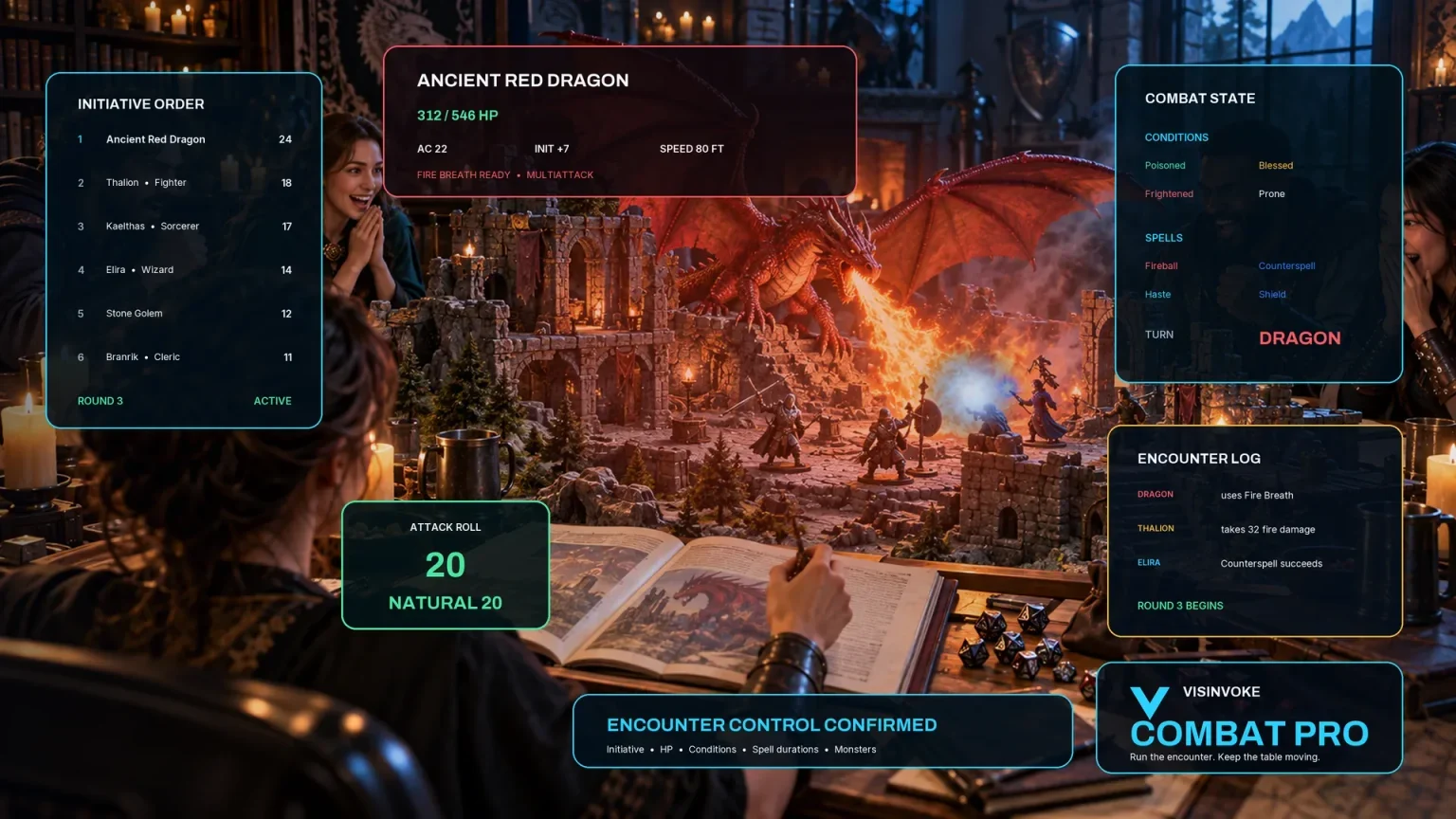
Use the dedicated encounter workspace for combat. Dramatic Entrance Generator prepares scene presentation and opening words.
Artwork illustrates fictional arrivals and related products, not application screens.
Questions and answers
Styles, opening words, saved material and account access at a glance.
A willing player character or an agreed party arrival. Prepare the presentation together and leave audience attitudes, checks and decisions with your table.
A striding arrival, striking silhouette, sudden appearance, quiet presence, magical flourish, grand announcement or unexpected route. Choose the style, mood and signature detail that fit the setting.
An entrance beat, ready-to-read line, opening words, any supplied catchphrase, where to stand next and a follow-on beat. Room reactions remain open, with separate player-facing material and private Dungeon Master context.
The arrival supplies scene presentation. Your table decides reactions, attitudes, checks and outcomes. Use the read-aloud line and opening words as the start of that conversation.
Edit, lock details and reroll selected material. In your signed-in library, reopen, rename, duplicate, search, tag, annotate or delete entrances and keep a twelve-version history. Copy the table line or chosen view, download the structured record or print it. Review private notes before sharing.
Open the Generators collection in Desktop Control Centre on Windows through your VISINVOKE account. Review individual subscription access and current pricing in your account. A free account is separate from paid generator access.
Continue in VISINVOKE
Create a free VISINVOKE account or sign in to your existing account. Get Desktop Control Centre through your account installer page.
Open the Generators collection on Windows. Review current subscription and access details in your account.